
Automate Your Excel Files with KNIME
In our post “Data Mining Tools” we introduced this new generation of tools that help us create a Data Science platform within our organizations. Among these tools, KNIME stands out for its great power and ease of use.
To generate sustainable value with these tools, it is essential to expand their use throughout the organization and create a data-driven culture. At the same time, terms like machine learning, data science, or algorithm can be intimidating for business users, but it is precisely here where the value of this tool lies for those with a less technical profile.
A use case that can bring this tool closer to business users and provide tangible value is the automation of Excel reports or tables. Thus, KNIME becomes a data manipulator for everyone, whether they are business users or data scientists.
Excel Automation for Business Users
We all know those Excel files that have been used for years and that no one wants or is able to touch. It is particularly common in sales or finance departments to have spent 20 years using complicated and difficult-to-manage Excel files. To generate these files, we often have to combine multiple data sources, copy and paste columns, remove duplicates, create pivot tables, replicate chained sum or lookup formulas, and much more. All of this consumes our time month after month or even day after day. I think we have all thought about creating a Macro to automate these tasks at some point, without much success.
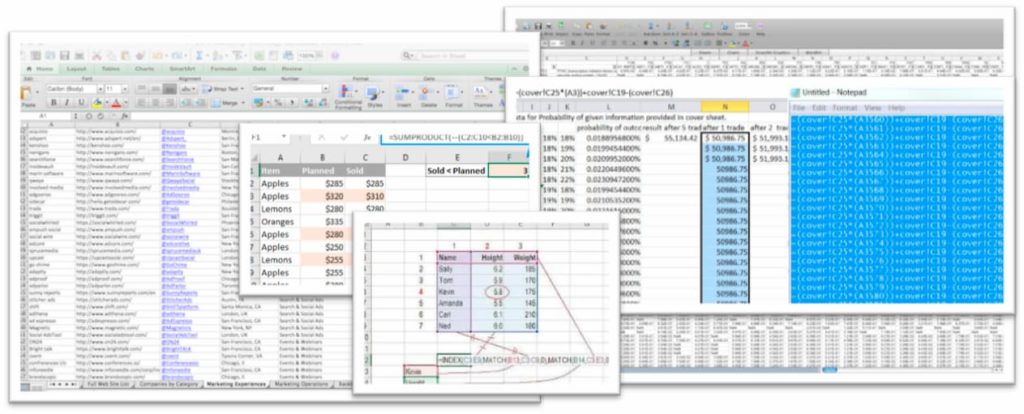
So how can we automate the generation of these Excel files in KNIME? With code in Java, R, Python, VBA, or some other programming language that represents a major barrier for many of us?
No! KNIME offers an intuitive platform where, without programming knowledge, we can automate repetitive tasks in Excel and save a lot of time. To do this, we only need to adapt our mindset to this new tool and gain some experience to understand how it works. With about 4 to 8 hours of training, an Excel user can start working with KNIME. The rest is learned gradually through use and with the help of a large community.
Data Manipulation Functions
KNIME features hundreds of nodes that the user can easily drag onto the graphical interface to create “workflows”—workstreams where data is manipulated step-by-step to give it the desired shape.
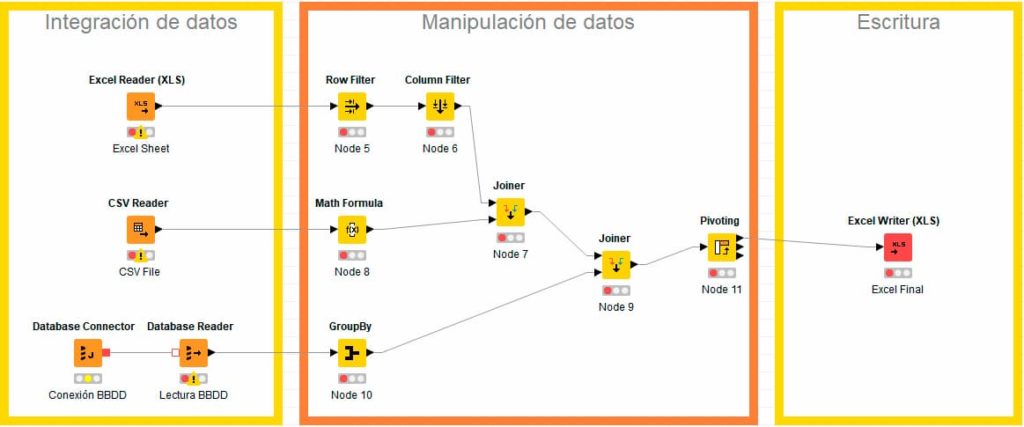
With KNIME, data from multiple sources such as Excel, CSV, or SQL databases, etc., can be easily integrated to be subsequently processed and manipulated to configure the required reports.
Filters with dynamic criteria, groupings, mathematical calculations, joins, pivots… these are some of the most common functions that help transform data into the desired format. While Excel struggles with calculations in tables of more than 50,000 rows, KNIME manages that amount of data easily. Finally, the result obtained can be exported to the desired destination (Excel, Database, etc.). Once the workflow is generated, the user can execute it with just one click, or even automate it using KNIME Server.
Conclusions
Automating Excel files with KNIME can bring significant value to organizations. At the same time, it motivates business users to start working with this tool. By starting with Excel automation, a business user gains experience and confidence with the tool and can later perform independent prediction or segmentation algorithms, extracting all the value found in the data.
If you are interested in learning more about KNIME and its possibilities, contact us or visit our KNIME event held on October 10 in Madrid: Data Science for Everyone with KNIME
Share on Facebook
Share on Google
Share on Twitter
Share on LinkedIn
Share on Pinterest
Share on Print
Share on Email